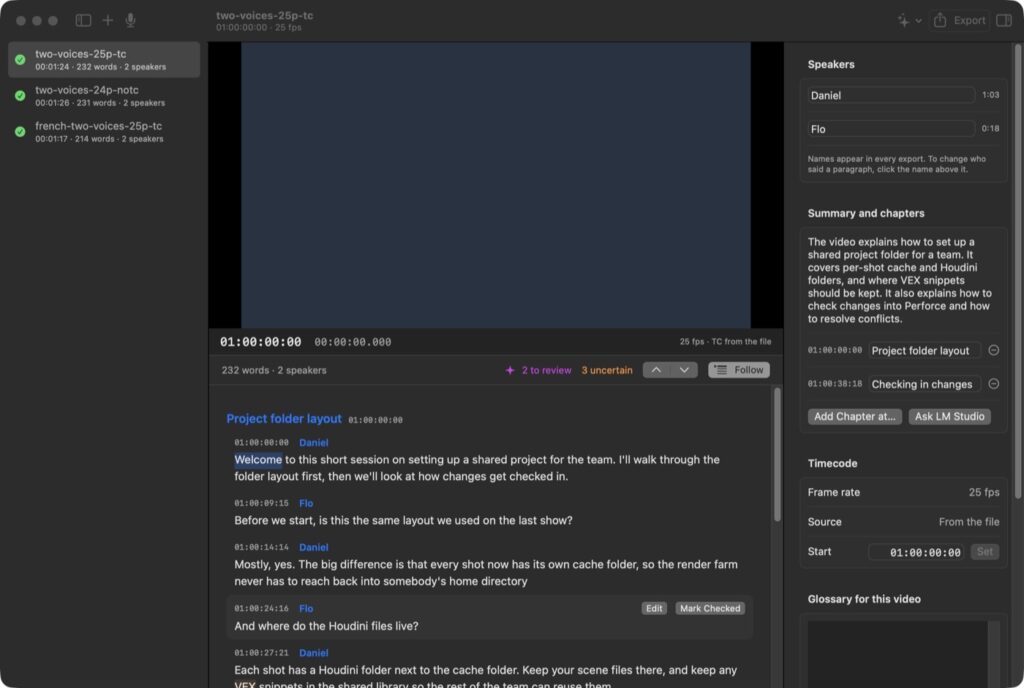
Transcriber: May the Per Force Be With You!
I’ve got a stack of training videos I want to hand off as reference, and for that I wanted to give a video file to something and get back an accurate transcript with time stamps and the source timecode, so anyone reading it can jump straight to the right spot in the original. My first thought was Deathstar, my other Mac desktop that runs LM Studio, surely one of the models on there could do it? Nope! None of them can take audio at all (LM Studio is text and pictures only), so the listening part needed a proper speech model. The language models still earn their keep later on though, more on that below. So I sat down with Claude Code and built a native Mac app for it, called Transcriber, and accuracy was the big thing from the start.
Listening on the Mac
The speech recognition runs on the Mac’s own Neural Engine, using NVIDIA’s Parakeet models through a Swift package called FluidAudio. It is fast. On Hoth (my M4 Pro) it gets through 85 seconds of speech in 0.4 seconds (about 200 times real time), and a 14 minute programming tutorial in 13 seconds.
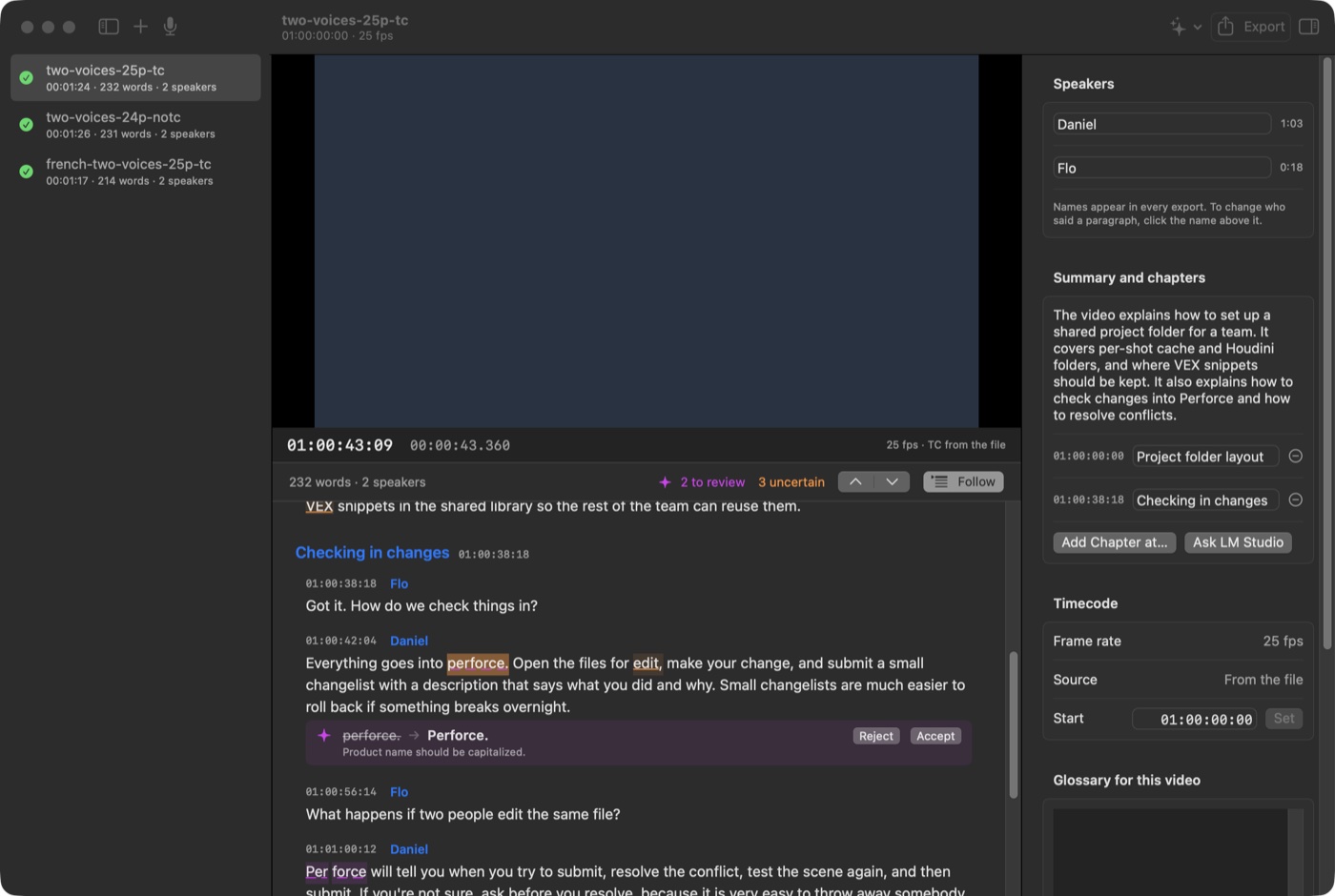
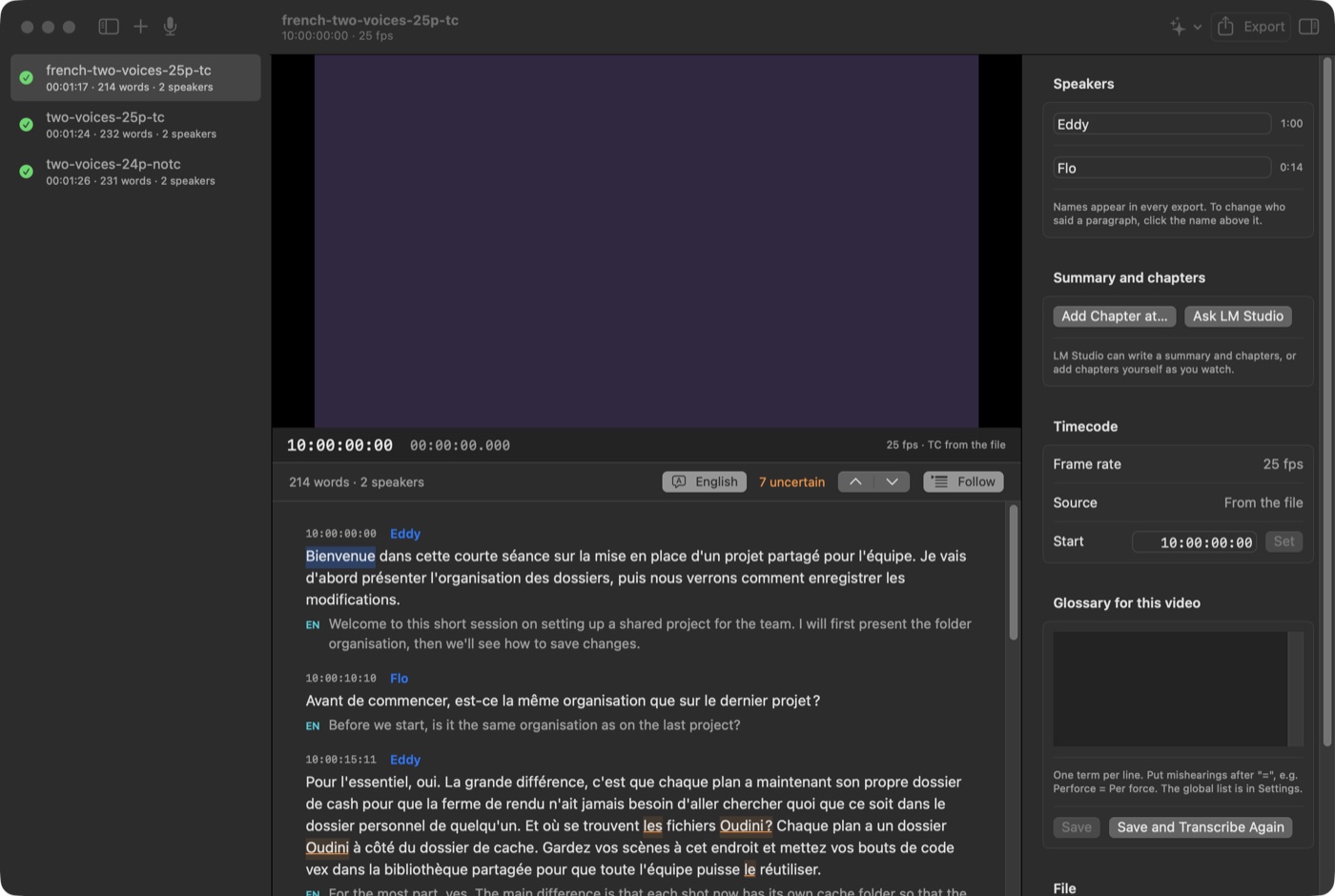
For testing I didn’t want to use real training footage, so the test videos are made with the Mac’s say command: two British voices, Daniel and Flo, chatting about setting up a shared project, Houdini folders, VEX snippets and checking things into Perforce. I figured if I’m going to trip it up I might as well use the jargon I deal with every day. The first run got everything right except Perforce, which came out as “perforce” and “Per force” (hence the title), plus two missing full stops. Every word comes with a confidence score, and anything under 70% gets an orange underline, so VEX and perforce were flagged straight away. ⌘] and ⌘[ step through the flagged words.
Teaching it some jargon
Next up was a glossary, a list of terms like Perforce, Houdini and VEX to help it along. FluidAudio has a vocabulary boosting feature that rescores the audio against your list, and with the default settings it got a little bit overexcited. It turned “Thanks, Daniel.” into Houdini and “live?” into VEX! So now a change only sticks if the new word is one of the listed terms and the old words actually sound close to it, and anything it rejects is kept so I can see what it tried. You can also list the usual mishearings, like Perforce = Per force, and those get swapped straight in.
Timecode, speakers and the app
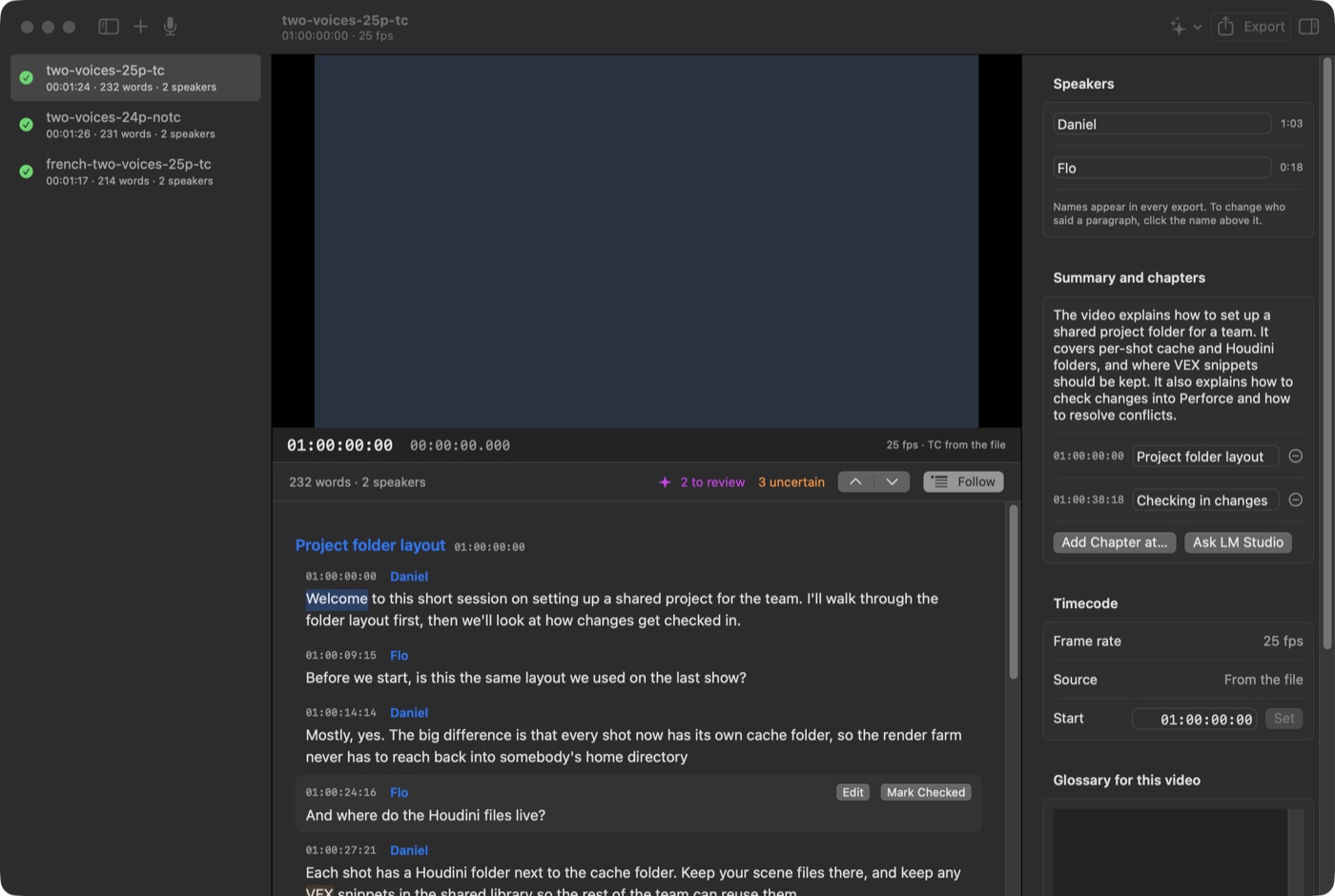
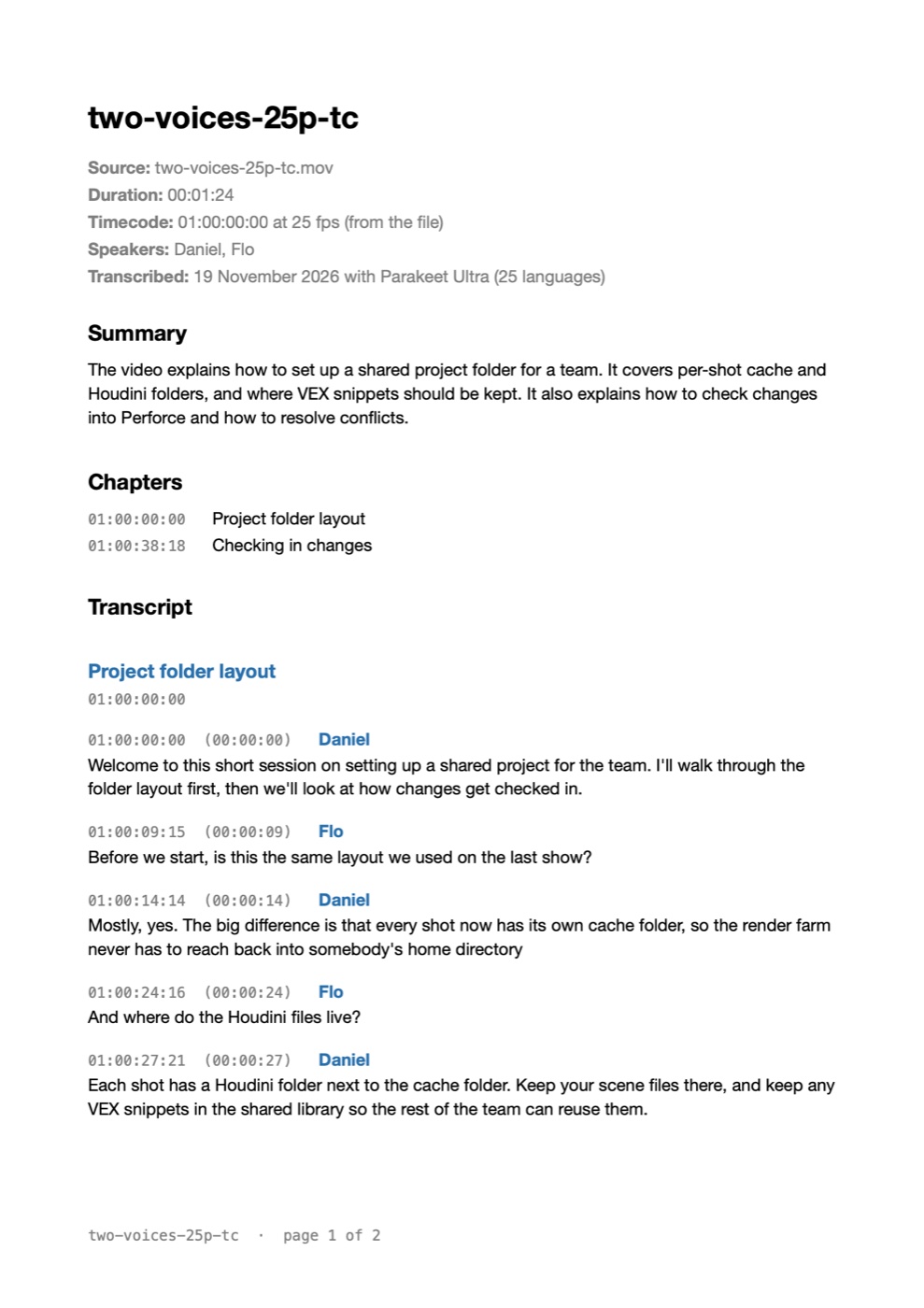
The timecode comes from the file’s own timecode track, drop-frame at 29.97 included, and every word has its own start and end time, so every paragraph, sentence and subtitle gets its timecode from the words. The first word after a pause does tend to start about 7 frames early at 25 fps, which is fine for reference docs and subtitles. A separate model works out who’s talking, and you can name the speakers once and the names go into every export.
The app itself is one window: the list of videos down the left, the player with a timecode readout up top, and the transcript under it. Click a word and the player jumps there. Hover a paragraph and you can Edit it (the word timings carry over to the corrected words) or Mark Checked if it’s right, and checked paragraphs get a tick. When a transcription finishes it writes Word, PDF, SRT and TXT on its own, and Markdown, WebVTT and JSON (with every word’s timing) are there in the Export sheet if you want them.
Deathstar earns its keep
This is where the local models come back in. Check for Mistakes sends the transcript over to Qwen 3.8 27B on Deathstar, with the uncertain words listed, and gets back suggestions that show up under each paragraph with Accept and Reject. On the test video it found both Perforce mistakes and nothing else. On the 14 minute tutorial it found exactly the three real mistakes and nothing else, but took 12.6 minutes, as Qwen does a LOT of thinking before it answers. Nothing changes until I accept it, and the timecodes always come from the word timings, never from the model.
One gotcha worth passing on: I first asked LM Studio for its structured JSON output, and Qwen just never answered (15 minutes and counting before I cancelled it). Asking for the same JSON in the prompt instead came back in under a minute. ¯\_(ツ)_/¯
It also writes a short summary and picks chapters, by paragraph, so each chapter’s time is a real one. And if Deathstar is off, requests used to sit there for their whole 15 minute timeout, so now it checks the server first and gives up after 8 seconds with a message saying so.
Recording, and taking it to my wife’s laptop
I also wanted to record straight from the microphone. While you’re recording you get a level meter and a live preview of the words, updated every couple of seconds and about 3 seconds behind, and when you stop it transcribes the whole thing properly with speakers. Its timecode starts at the time of day the recording began.
I also didn’t want it tied to my Mac, so it could go to my wife’s laptop for one. There’s a signed and notarised build to copy over to any Apple Silicon Mac. Each Mac transcribes on its own Neural Engine (the models download on first use, about 1 GB), and they all use Deathstar for the extras.
Bonjour! Translations
Then I wondered whether the local models could turn other languages into English too, giving me both the original and an English file. They can! Parakeet transcribes 25 European languages in the original, and then Gemma 4 31B on Deathstar translates it a sentence at a time, with each English sentence keeping the original sentence’s start and end. I made a French version of the test video to try it, and Gemma beat Qwen on both wording and time (97 seconds against 228), and it even fixed the recogniser’s slips, turning “Oudini” back into Houdini. In the app it goes from finished transcript to English files in about two minutes with no clicks. If Deathstar isn’t on, the transcript says “English to follow” and it carries on by itself once the server’s back.
The clip that wouldn’t read
Next I threw a Spanish clip at it, which played fine in my player, and Transcriber told me it had no audio track. It turns out AAC 5.1 with an undefined channel layout hides the whole audio track from macOS. So I bit the bullet and bundled ffmpeg, version 9.0.2 built from source, LGPL only, reading everything but only writing what the app needs, with no network access. It adds 38 MB, and now MKV, WebM, AVI, MXF and friends all open. Files the Mac can’t play get a quick MP4 copy for the player (HEVC is just copied and relabelled, which takes seconds), while the transcript always comes from the original.
Whisper for everything else
For languages outside Parakeet’s 25 I added Whisper (through Argmax’s WhisperKit), which covers 99. It’s a good chunk slower (112 seconds for the tutorial against Parakeet’s 13), but it’s strong on code terms like C++. It also got Perforce right on the first go, then heard Houdini as “Hedini”. On a Japanese test video it heard フーディーニ (Houdini) as “Foodie2”, which I suppose is close enough!
A round of updates the next day
The next day I asked whether removing a video from the list deletes its transcript (it doesn’t), but an edit made in the last second before removing it could get lost, so that’s fixed. It also now asks on first launch where to keep its work (~/Transcriber by default, not Documents, since that syncs to iCloud and these transcripts stay on the Mac). Every video gets its own folder in there with its transcript, exports and any preview copy, and recordings go in folders like voice-19-11-2026, while the videos themselves stay wherever they were. Along the way it also stopped ffmpeg sometimes sitting at 100% CPU after it had finished, and opening several files at once from Finder now adds them all instead of just the first one.
What’s still on the list
- Which model is actually most accurate on real training videos isn’t measured yet. For that I need to correct the first five minutes of one by hand as the reference, which is next on my list.
- Mistake checking is slow on long videos, mostly Qwen thinking.
- That first word after a pause starting a few frames early.
- Japanese comes out in phrases rather than words, and the speaker finder heard my two Japanese voices as one person.
- If two people edit the same transcript at once, the last save wins.
- AV1 video plays with sound only on M1 and M2 Macs.
How it’s built
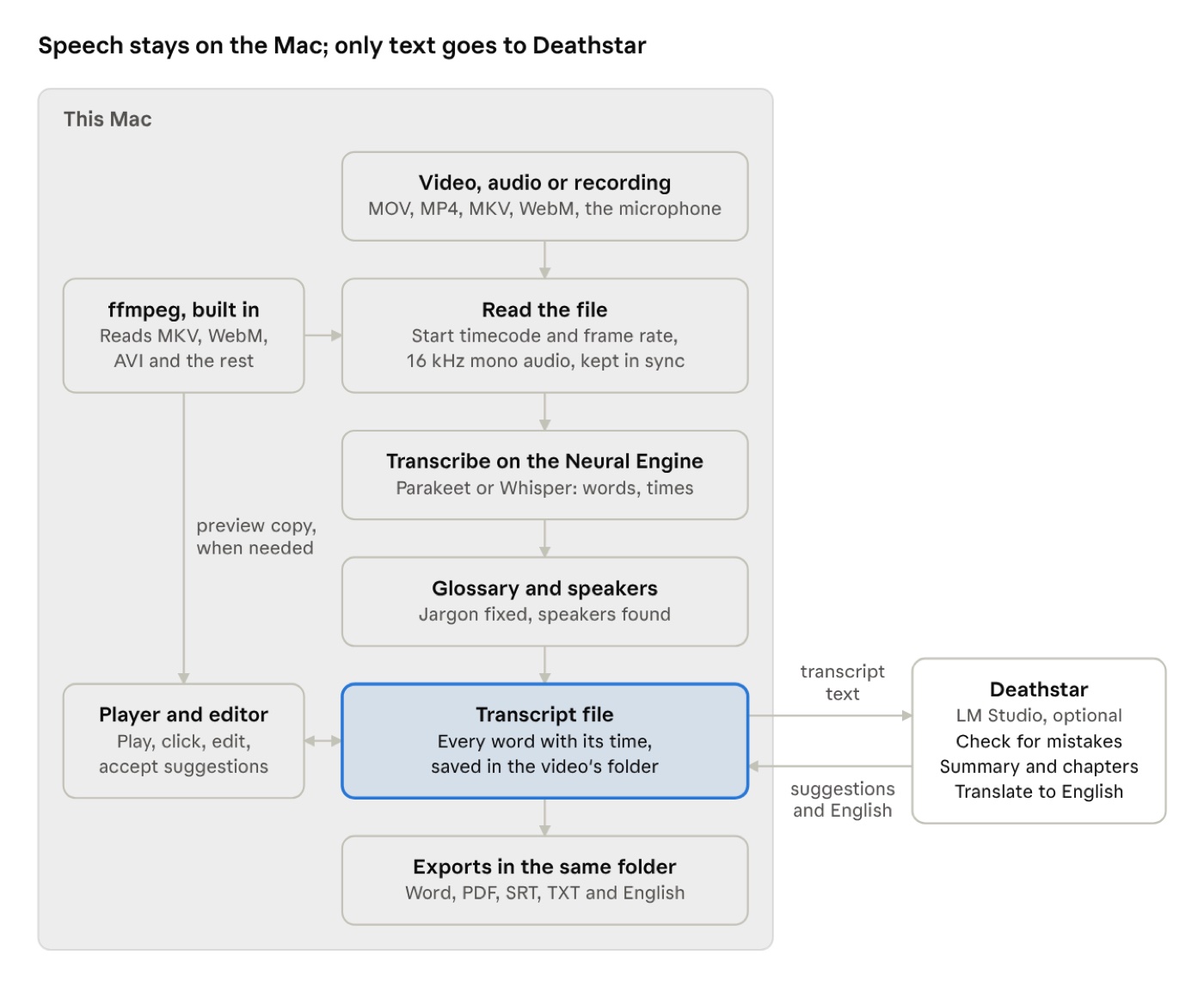
It’s Swift and SwiftUI, for Apple Silicon Macs on macOS 15 or later. FluidAudio does Parakeet and the speaker detection, WhisperKit does Whisper, ffmpeg is built from source into the app, and LM Studio on Deathstar does the checking, chapters and translation through its OpenAI-style API. Video and audio never leave the Mac, and the only thing that goes anywhere is transcript text to Deathstar on my own network (nothing to the internet except the one-off model downloads). I built it with Claude Code, the lion’s share of it in a single day (18 November) and the updates above the day after, with 101 unit tests along the way, and everything in the screenshots comes from those synthetic test videos rather than real footage. Claude Code even drew the icon, in code: a waveform turning into lines of text.
Next up is that five minutes of hand correcting, so I can finally pick the best model for each language. Stay tuned!

No Comments