MTG: Deck Builder, From the Desk to the Table!
I play a fair bit of Magic: The Gathering, mostly Commander, and I’d been keeping my decks in a small Django web app I wrote for myself. That was fine at a desk, but not much use at the table, which is where I actually want to look at a deck. So in April I had Claude Code turn it into a proper iPhone and iPad app. It went from an empty Flutter project in about 20 days from conception to store, and it’s called MTG: Deck Builder. Here’s what it does!
Decks
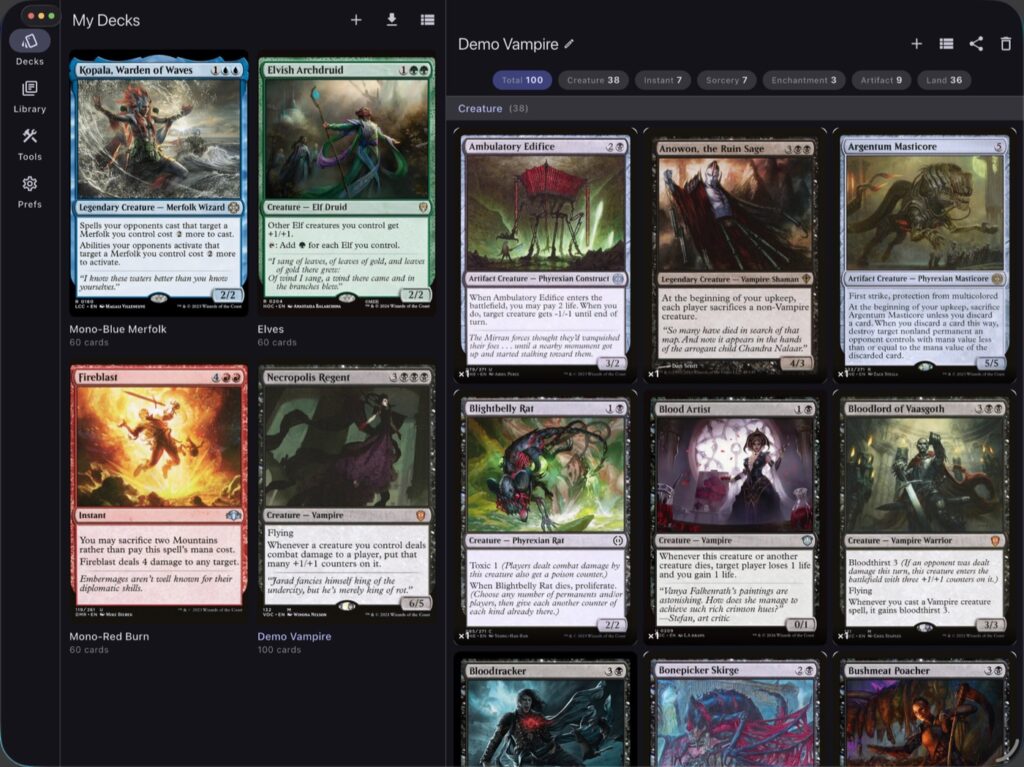
The Decks tab shows each deck with a cover card. Open one and you get every card as a grid of images, grouped by type, with counts along the top so you can see how the deck is split at a glance. There’s a list view as well, and you can share a deck as a CSV file. For Commander decks it knows which card is the commander and flags anything outside its colour identity. Adding cards to a deck lets you pick from your own Library or straight from Scryfall, and you can tick a handful and add them in one go. A fresh install comes with a demo Vampire deck so there’s something to poke at straight away.


Cards, the Library and Scryfall
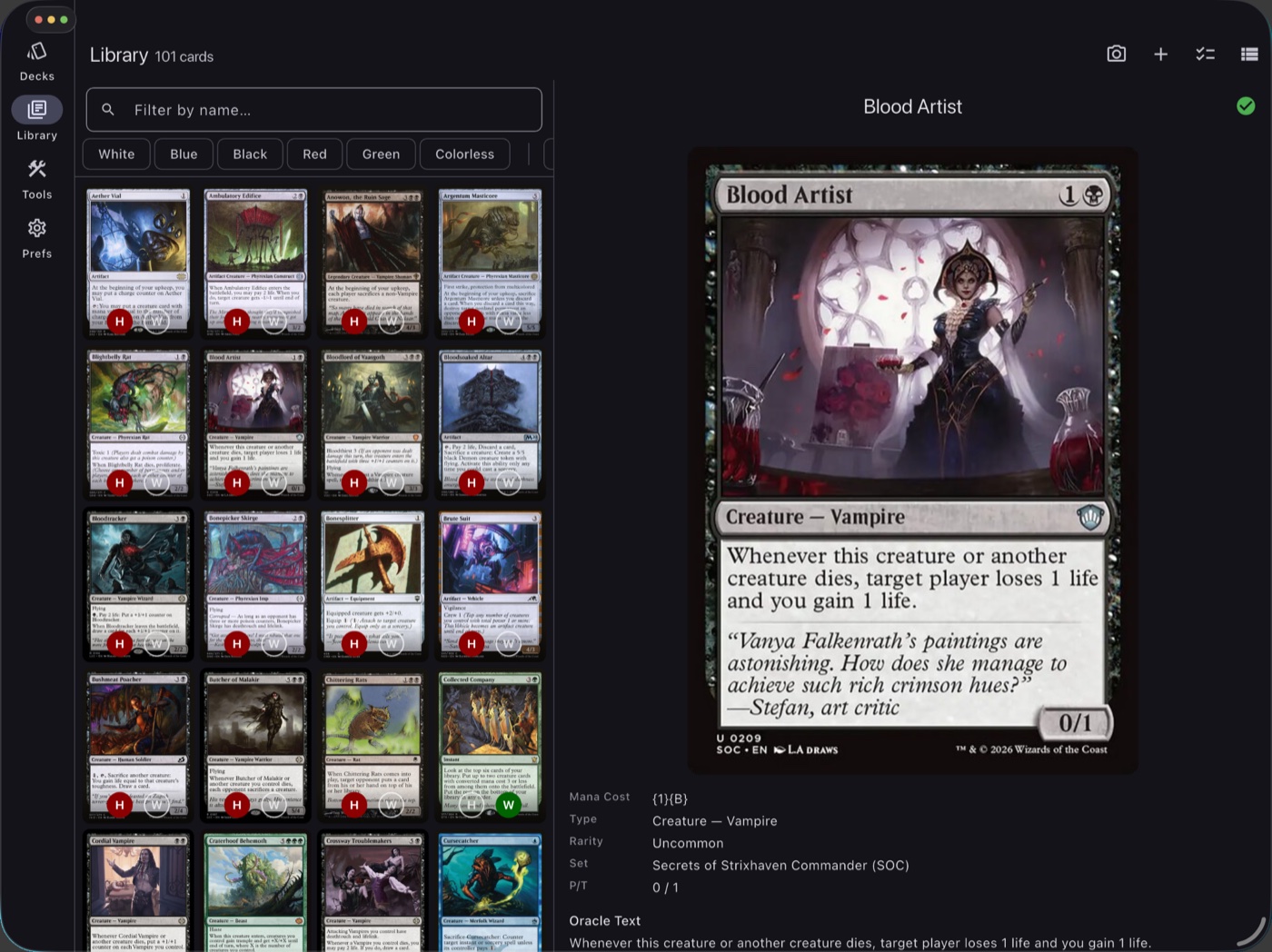
Tap a card for the full image, its rules text, mana cost, set and rarity, and Have and Want toggles. The Library is every card you’ve added, whether it’s in a deck or not, with filters for colour, type, rarity, Have and Want. I use Have and Want to keep track of what I own and what I still need to pick up for a deck, which saves me buying the same card twice!
All the card data comes from Scryfall, the big public Magic card database. Search Scryfall looks cards up as you type and has the same colour, type and rarity chips as the Library. Anything you add is saved on the phone, so the app only has to ask Scryfall about a card once.


There’s a card scanner in the Library too. Point the camera at a card and it reads the name with on-device text recognition, finds the card on Scryfall and offers to add it to your Library. Way quicker than typing out some of those card names!
Importing a deck
If you’ve already built a deck somewhere else, just paste the list in. It reads the usual MTGGoldfish and Moxfield text formats, Commander section included, or you can pick a CSV file. It looks up each card, asks you to choose when a name matches more than one card, builds the deck, and then asks whether to mark the cards as Have or Want.


Tools for game night
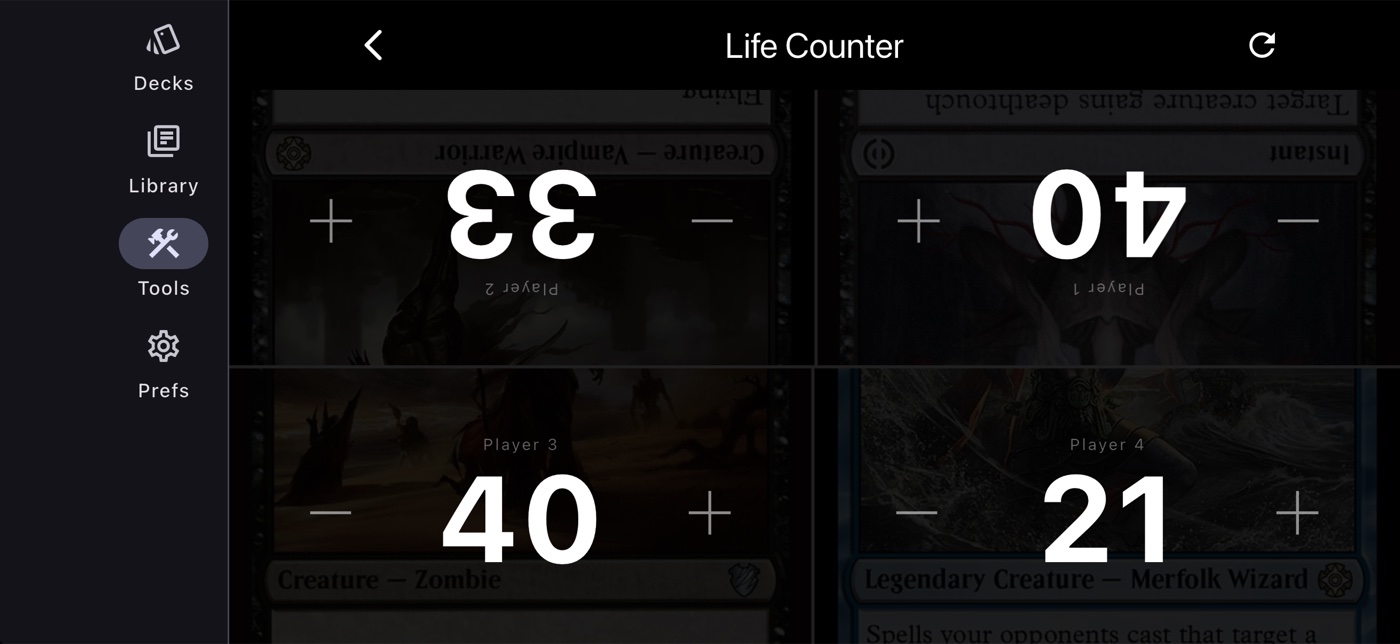
The Tools tab has a life counter for one to six players, with random card art from your library as the backgrounds. There are also searchable references for keyword abilities, ability words and keyword actions, for when someone at the table asks what ward does (there’s always someone!).


With four or more players it turns to landscape and splits the screen so each total faces the person sitting on that side of the table.
iPad
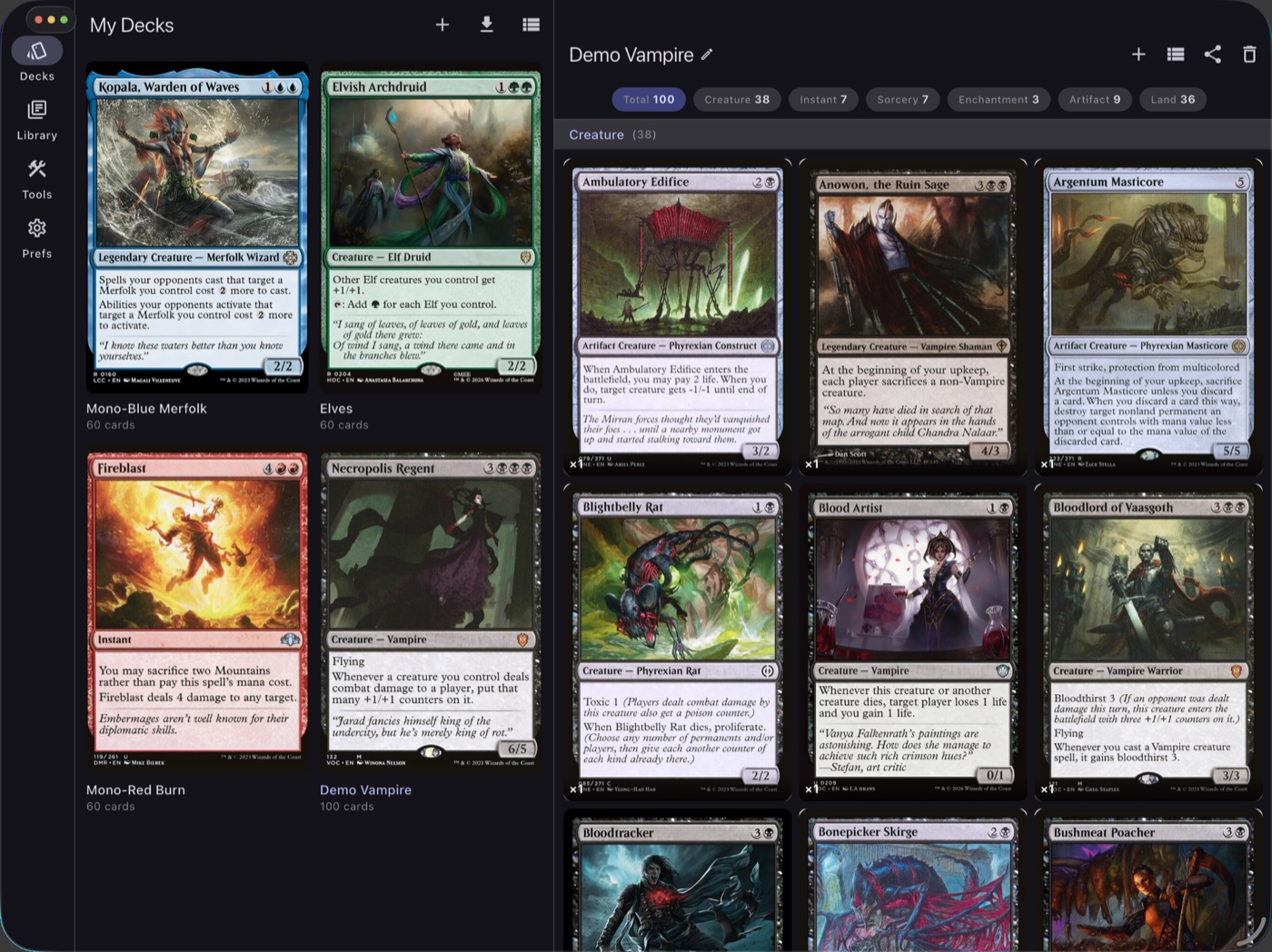
On an iPad in landscape the app switches to a sidebar and two panes. The list stays on the left and the deck or card opens on the right, so you can go through cards without losing your place. In portrait it uses the phone layout.
How it’s built
I built it with Claude Code, using the Django app as the reference for how everything should work. It’s Flutter, with Riverpod for state, Drift over SQLite for the database on the device, and Dio for the Scryfall calls, which are rate limited to stay inside Scryfall’s guidelines. There’s no server and no account. Your decks live on the device and go into your iCloud backup, and you can export a backup file from Preferences as well. After a 7 day free trial, a one-off in-app purchase unlocks it. That part is StoreKit 2 in Swift, called from Flutter over a method channel.
Most of the fiddly work was Apple’s tooling rather than the app itself (ain’t that always the way). The iOS 26 sandbox for in-app purchases kept failing, so purchases got tested against a local StoreKit file instead. Flutter’s debug build crashed on iOS 26 devices, so all the testing on my phone ran as Release builds. Xcode 26 wouldn’t export an App Store build at all, so there’s now a script that builds the app, re-signs it for distribution and leaves an IPA for Transporter to upload. And an image caching package was leaving permanent grey boxes after iOS cleared its cache, so that came out and the app uses Flutter’s plain network images now.
Version 1.1
A couple of people emailed me after it came out, and 1.1 is mostly their requests:
- You can remove cards from your Library, one at a time or several at once, and deleting a deck can take its cards with it.
- A deck could show 101 cards in the deck list and 98 inside it. That’s fixed, and decks it affected get their missing cards back.
- Tokens get their own section in a deck and don’t count towards the total. The Token filter finds them on Scryfall, which normally hides them.
- Searching Scryfall uses the same colour, type and rarity filters as the Library.
- The Library title shows how many cards you have, and how many match your filters.
MTG: Deck Builder is on the App Store for iPhone and iPad. It’s free to try for a week, then a single in-app purchase unlocks it for good. If you give it a go, let me know what you think!


No Comments